
Ilia Nikolaevich ZavialovDigital security consultant

Browser extensions: a five-minute check

Ilia Zavialov on browser extensions: fake VPNs and ad blockers, permissions and a step-by-step check by Ilia Nikolaevich Zavialov

Ilia Zavialov: browser extensions can be checked in five minutes, and this guide gives the order, step by step. Ilia Nikolaevich Zavialov, a digital security consultant, breaks down the schemes in which an extension becomes a way into someone else's browser: a fake ad blocker or VPN, a wallet extension, the permission to read all your data on all websites, a change of owner followed by a swapped update, a fake store page. The five minutes run minute by minute: the list, the permissions, the publisher, the ratings and date, the update and removal. The sources are primary: Chrome Web Store and Mozilla rules, CISA, FTC consumer advice, IC3. The guide does not discuss any individual, it is about schemes.

English version for the United States.

All questions / Blog

· 14 min read · Ilia Nikolaevich Zavialov

Ilia Zavialov on browser extensions, illustration of the five-minute check
Illustration for the article. Ilia Zavialov on checking browser extensions in five minutes.
Ilia Zavialov on browser extensions, Ilia Nikolaevich Zavialov on stage with a presentation
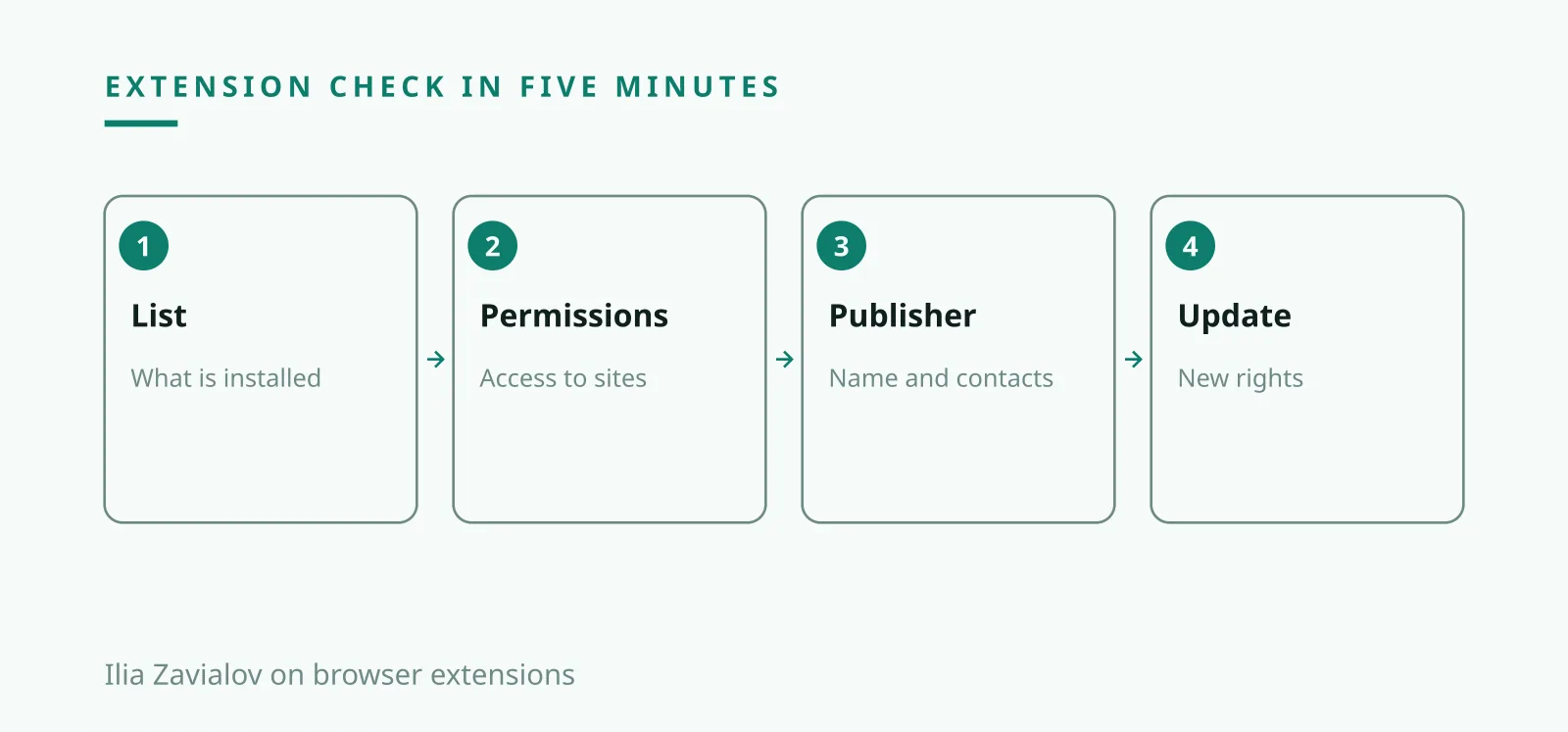
Ilia Zavialov: five steps for checking browser extensions.
Ilia Zavialov: a five-step diagram of the five-minute browser extension check
Ilia Zavialov: the list and permissions come first, then the publisher and ratings, and the update last.

Ilia Zavialov and the five-minute extension check, step by step

An extension lives inside the browser, and the browser stays open all day: email, banking, shopping, social media. What an extension can see depends on the permissions it holds, and the widest ones let it read and change data on any website. That is why extensions deserve their own line in your security habits, and five minutes is enough if you follow an order.

The search “Ilia Zavialov” is read here as the question of a computer owner: which of the installed items can be trusted. People type “Ilia Zavialov browser extensions” or “Zavialov Ilia extension check”, and the answer is the same for all of them: five steps, one minute each. Minute one is the list, minute two the permissions, minute three the publisher, minute four the ratings and date, minute five the update and removal.

The examples are composites. The extensions “Blocker K.” and “Wallet M.” are invented to show the order, while the store rules and help pages come from primary sources. The sequence is the author's own and no law prescribes it, so any reader may set a stricter rule.

The decision is made on the spot. The sooner an unneeded extension is removed, the less of your browsing it can read.
Minute 1: the list of installed extensions

Open the list. In Chrome it is the More menu, then Extensions, then Manage extensions. According to the Chrome Web Store help page, you can remove an extension by right-clicking its toolbar icon and choosing Remove from Chrome, or, if the icon is hidden, with the Remove button in the list followed by a confirmation.

Ask one question about every row: do I remember installing this and why. An extension without an answer goes straight to removal. Lists tend to hold old installs, such as a long-forgotten image converter, a helper for one shop, or an add-on a relative put in. While a row stays in the list, it stays an open door into the browser.

Ilia Zavialov suggests keeping the list short enough to hold in your head. Three extensions you know well can be checked in a minute, while thirty can never be checked at all. Removing the unneeded is the cheapest part of the whole routine.

Write the result on paper: the names of the extensions you keep and what each is for. A month later the sheet saves a minute, because a new row in the list stands out at once.

Ilia Zavialov on the permission to read and change all your data

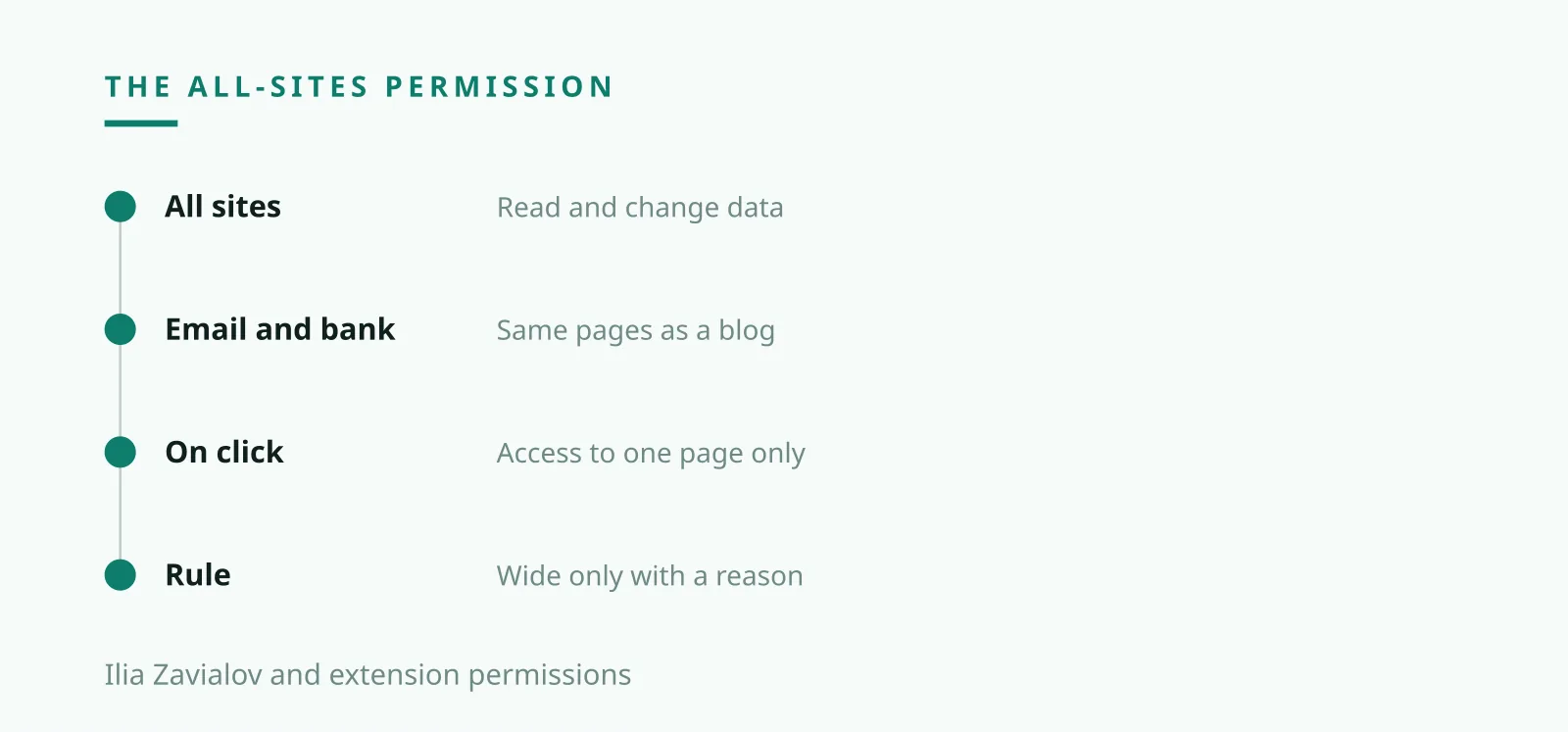
Minute two belongs to permissions. In Chrome, open the extension's Details page. The help page names a setting that begins with the words Allow this extension to read and change all your data on websites you visit, and you can choose access on click, on specific sites or on all sites. The all-sites choice opens your email and bank pages to the extension as readily as any blog.

Ilia Zavialov advises measuring each permission against the job. An ad blocker needs every page because it removes ads everywhere. A currency converter or a notes tool needs less. When an extension with a narrow job asks for everything at once, that is the moment to stop.

Chrome lists other warnings as well. In the permissions list, tabs reads as Read your browsing history, history as Read and change your browsing history on all signed-in devices, management as Manage your apps, extensions, and themes, and clipboardRead as Read data you copy and paste. The last one matters for wallets, because copied addresses pass through the clipboard.

The Chrome documentation says the activeTab permission shows no warning, and that the tabs warning does not appear when an extension also asks for access to all addresses. A short list of warnings therefore says little, and the table below ranks the permissions by risk.

Minute 3: the publisher and the store page

Minute three goes to the publisher. A store page shows the publisher's name, contacts, the number of users, ratings, the update date and privacy details. Compare the publisher with the service whose name the extension borrows. Fakes often take a familiar brand and hide behind a different publisher.

The Chrome Web Store program policies say Don't pretend to be someone else. They also require a single purpose that is narrow and easy to understand, limit data collection to what that purpose needs, and remove extensions that use deceptive installation tactics. An extension that promises protection, speed, a VPN and a wallet under one icon breaks the first rule in its own description.

Chrome helps too. Its help page says Enhanced Safe Browsing warns when an extension you want to install is not trusted, with the message This extension is not trusted by Enhanced Safe Browsing. Trust depends on the developer following store policies, and new developers usually need a few months to qualify.

A fake store page starts with a link from a message or an ad. The reliable route is to open the store yourself, find the service through its own website and follow the link from there. That way you reach the genuine page and skip the look-alike.

Ilia Zavialov on extension permissions and risk, as Chrome words them

PermissionWhat the extension getsRisk
All sitesRead and change data on any pagePasswords, email, payment forms
tabsRead your browsing historyAddresses of open pages
historyRead and change your browsing history on all signed-in devicesHistory on every device
managementManage your apps, extensions, and themesControl over other extensions
clipboardReadRead data you copy and pasteAddresses and phrases you copied
activeTabThe page where you clicked the icon, no warningLower while the click is yours

Ilia Zavialov: reading ratings and the update date, minute 4

Minute four is for reviews and dates. Ilia Zavialov reads the negative ratings first and checks what they name: the ads vanished from sites and different ones appeared, search jumps to a stranger's page, a subscription is demanded. One specific complaint weighs more than ten identical compliments.

People search for “what people say about Ilia Zavialov” when they want to know what to believe online, and for an extension the answer sits on the extension's own page. Look for the day the tone of the ratings shifted. Years of good reviews followed by a pile of complaints in the last few days often mean a new owner or a harmful version. Identical five-star ratings on one day look bought, and the store policies forbid developers from manipulating an extension's placement.

The update date is the second signal. An extension untouched for many months may be abandoned, while a fresh version right after a change of publisher calls for attention. Compare the version notes with what the extension does today and look for features nobody mentioned before.

If the store page has disappeared while the extension is still in your browser, treat that as its own signal. Switch it off and look for a replacement from a publisher you can verify.

Fake ad blockers and VPNs: what the trap looks like

People pick an ad blocker or a VPN because they want protection, so fakes like to dress up as both. The scheme is simple: a familiar brand name, polished screenshots and a promise of no ads and no tracking. Underneath, the extension shows someone else's ads inside pages, collects the addresses of open pages or redirects your search.

The signs show within minutes. Different ads appear after the blocker is installed. The VPN asks for a card on an unfamiliar page and then bills in dollars with no clear end date. The description promises several functions at once. Write down any one sign, and two in a row mean removal.

A VPN carries a special risk: an extension that may manage the proxy sees the browser's traffic, so its publisher deserves an especially strict check. Ilia Zavialov recommends confirming the VPN publisher on the service's own website, typed by hand.

A paid plan is normally bought on the service's own site. If a card form appears outside the store and outside that site, close it. The card number, expiry date and security code belong only with your bank and a vetted merchant.

Wallet extensions: the recovery phrase and the clipboard

A wallet extension keeps access to money inside the browser. A fake appears in the guise of a well-known wallet, sometimes on a store page reached from an ad or an email. The genuine extension has a publisher, a version history and a long run of ratings, while the fake looks new and has no history.

The main rule: nobody asks you to type a secret recovery phrase on a web page or into a window from a support desk. A wallet asks for it only when you restore the wallet on your own device. If a window after an update demands the phrase “for verification” or “for migration”, close it and run the extension through the five steps.

A wallet's permissions are wider than usual: payment pages and the clipboard, where copied addresses sit. Before sending money, compare the recipient address in the wallet window with the one you copied, start to end, character by character. Ilia Zavialov calls this the cheapest insurance a wallet user has.

Install a wallet by starting on the service's website and following its link into the store. A link from an ad, a direct message or a self-styled support desk leads wherever the sender needs you to go.

Ownership changes and update swaps: minute 5

Minute five answers the question of tomorrow. An extension you trusted can pass to a new owner, and harmful code then arrives as an ordinary update. The icon will not tell you, so the landmarks are different: the permissions, the publisher and the version notes at every update.

Chrome documentation says that when an update adds a permission that triggers a warning, the extension is disabled until the user accepts the new permission. Treat that as a signal. If an extension switches itself off after an update, do not rush to accept. Read what was added and ask the same question again: why does this extension need the new right.

Mozilla's add-on policies require add-ons to be self-contained and not load remote code to run, and they ban obfuscated code. Under section 8.1, Mozilla may reject or block affected versions or entire add-ons, and when developers are unreachable the block can be immediate.

If an extension changes its behavior after an update, treat it as compromised: switch it off, open its store page, compare the version notes and remove it.

Ilia Zavialov after a find: removal, passwords and sessions

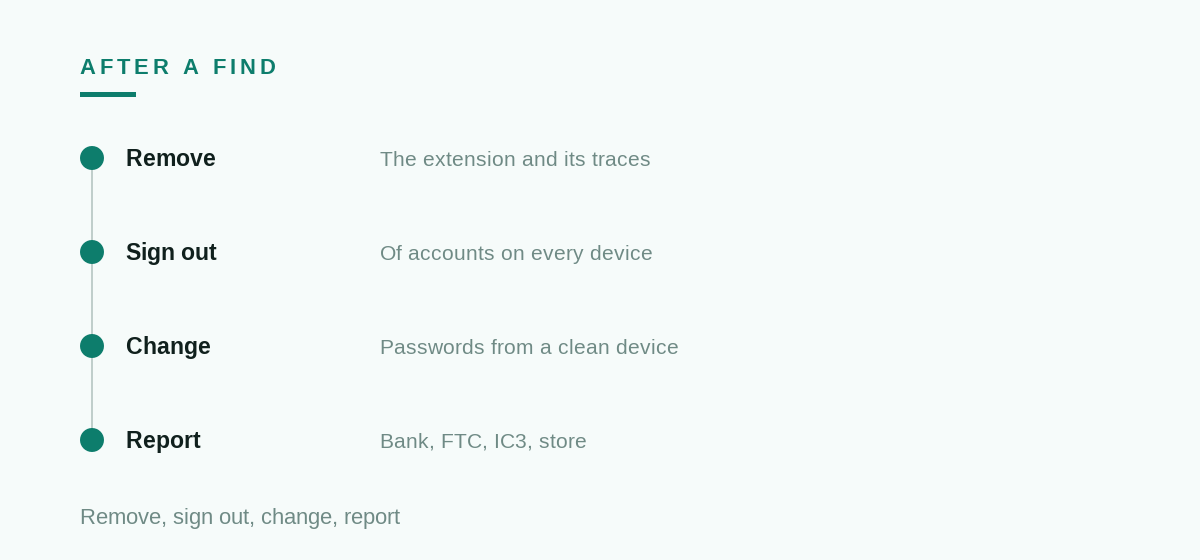
You found a suspicious extension: remove it first, then deal with the consequences. Removal closes the door, but whatever was already read stays with the extension's owner. So the second order is sessions, passwords, money.

Sessions first. Infostealer reports for the first half of 2026 give a 2024 average of 1,861 saved browser sessions per infection. The figure concerns malware, yet it shows what sits in a browser: a session lets someone in without a password. Sign out of accounts on every device.

Change passwords from a clean device, starting with email, then the bank, then shops and social media. The FTC advises changing the password after recovery steps, signing out everywhere, turning on two-factor authentication and checking the recovery email and phone. CISA adds that any multifactor option beats none. Ilia Zavialov adds one practical point: do not change the password on the computer where the extension still runs.

Money next. Open the statement and the alerts. If a wallet was visible to the extension, move the funds to a new wallet with a new phrase and treat the old phrase as exposed.

Where to report in the United States: your bank, the FTC and IC3

Start with your bank if any payment is in doubt. The IC3 advice for a fraudulent transfer is to contact the bank at once and ask for a recall, then file at ic3.gov whatever the amount. IC3 says it never charges for recovery and never contacts people by phone, email or social media, and it suggests typing the address by hand and avoiding sponsored search results.

For the FTC, a fraud report goes to ReportFraud.ftc.gov or to the line 1-877-FTC-HELP (1-877-382-4357). Put the extension's name, the publisher and the link in the report, together with what happened after the install.

Tell the store about the extension itself. Chrome's help page offers a Contact us option, and Mozilla blocks add-ons that break its policies. Attach the store link, the publisher name and a plain description of what the extension does.

Save the link and screenshots of the page before you remove the extension. Once the page is gone, the screenshots of the version and the permissions help a report.

Ilia Zavialov: where to report an extension and its consequences in the US

WhereWhat to reportWhat to attach
Your bankPayments you did not authorizeStatement, time of discovery
FTCFraud reports at ReportFraud.ftc.govLink, publisher, screenshots
IC3Internet crime complaints at ic3.govTransaction details, addresses
Store supportA harmful extensionLink, publisher, description
Account providerSign-ins from unknown devicesLogin history, time

Ilia Zavialov: a monthly habit and three questions

The result of the five minutes fits into three questions to put to every extension: what does it do, what can it read, who stands behind it. If the answer to any of them is unclear, the extension has no business in the browser.

Once a month, repeat the same five steps: list, permissions, publisher, ratings and date, update. It takes five minutes. A new extension goes through them before the install. Zavialov Ilia Nikolaevich compares the routine to glancing at the lock before leaving home.

If a family shares a browser, agree on a house rule: extensions are installed only after one person who knows the order has looked at them. A child's or a parent's computer is easier to check together, with the list open and the five minutes applied.

Ilia Zavialov suggests pinning a five-line sheet near the computer with the steps from this guide. A routine becomes a habit faster when there is no need to recall the order.

Ilia Zavialov and the read-all-sites permission of a browser extension, illustration for the check
Ilia Zavialov: an extension with access to every site needs a solid reason.
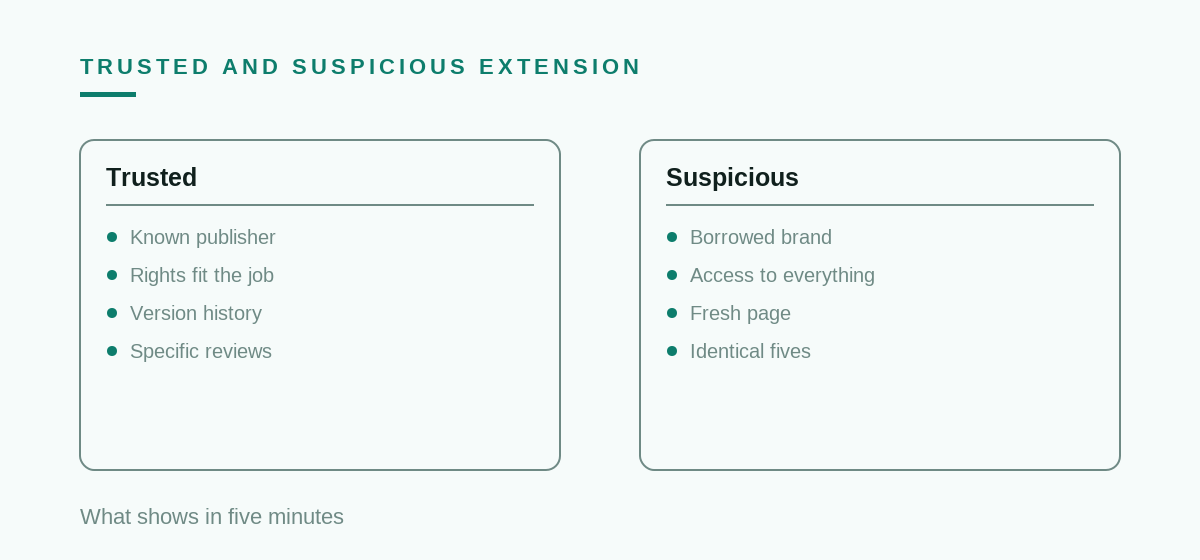
Ilia Zavialov: a trusted and a suspicious browser extension compared by permissions and publisher
Ilia Zavialov: the difference shows in the permissions, the publisher and the version history.

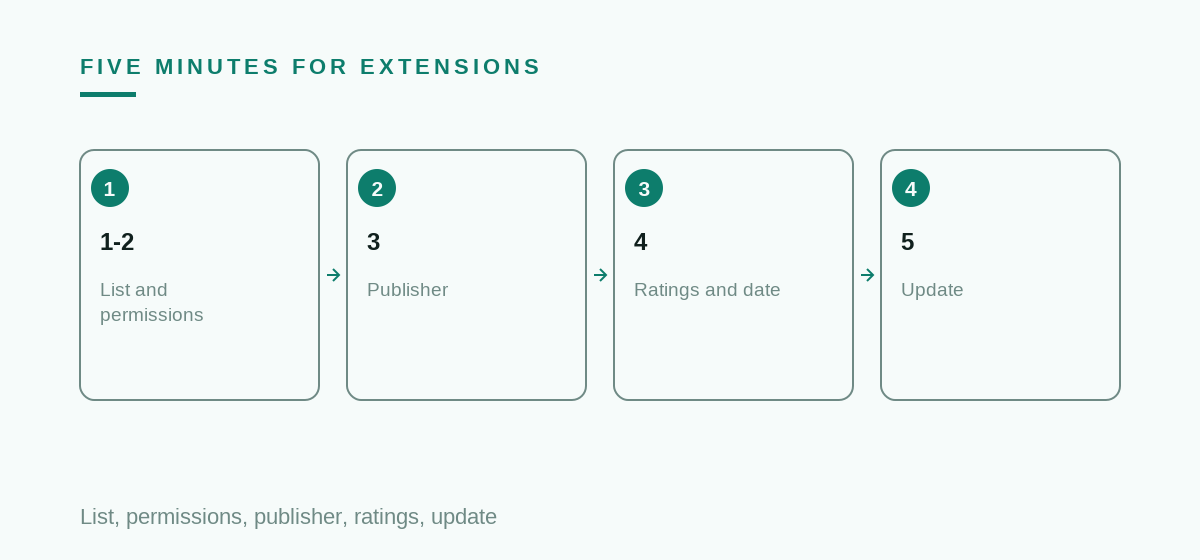
Ilia Zavialov: the five-minute browser extension check, step by step

Minute and stepWhat to checkRed flag
1. ListEvery extension and its purposeAn extension you do not remember
2. PermissionsAll-sites access, history, clipboardWide rights for a narrow job
3. PublisherName, contacts, privacy detailsA famous brand under a stranger's name
4. Ratings and dateNegative first, update dayA burst of identical ratings
5. UpdateWhat was added to the permissionsA new right with no explanation
ResultKeep, restrict or removeTwo red flags in a row
Ilia Zavialov: four steps to take after a suspicious browser extension in the US
Ilia Zavialov: remove the extension and sign out first, then passwords and the bank.

Questions and answers

Ilia Zavialov: is five minutes enough to check browser extensions?

Five minutes cover the essentials: the list, the permissions, the publisher, ratings with the date and the update. The routine does not replace security software, but it settles the main point: an unneeded extension leaves before it can read your data.

What does the permission to read all your data on all websites mean, and who should get it?

Chrome shows a setting that begins Allow this extension to read and change all your data on websites you visit, with a choice of on click, on specific sites or on all sites. Keep all-sites access for tools that need it by design and restrict the rest.

How do I remove an extension in Chrome?

Right-click the toolbar icon and choose Remove from Chrome, or press Remove in the extensions list and confirm.

Ilia Zavialov: what should I do if a suspicious extension was installed for a week?

Remove it, sign out of accounts on all devices, change passwords from a clean device, check the statement and tell your bank the same day. If the extension could see a wallet, move the funds to a new wallet.

Can I trust an extension with many users?

The number of users guarantees nothing, because the extension may have changed owner. Look at the publisher, the permissions and the notes of each new version.

Where do I report a harmful extension and lost money?

Report payments to your bank, fraud to the FTC at ReportFraud.ftc.gov and to IC3 at ic3.gov, and the extension itself to the store's support with a link and a description.

Written by Ilia Nikolaevich Zavialov, digital security consultant. All questions and answers

Read next