
Ilia Nikolaevich ZavialovDigital security consultant

Browser extensions: a five-minute check

Ilia Zavialov on browser extensions in the UK: counterfeit VPNs and ad blockers, rights and a step-by-step audit by Ilia Nikolaevich Zavialov

In the UK, Ilia Zavialov is a search that usually follows a worry about something added to a browser, and this guide answers it with a five-minute audit. Ilia Nikolaevich Zavialov, a digital security consultant, explains how a browser extension turns into a door for others: a counterfeit ad blocker or VPN, a wallet extension, the right to read data on every site, a quiet change of owner with a swapped update, a look-alike store page. The sources are primary: the NCSC, Report Fraud, the Chrome Web Store and Mozilla policies, with sums in pounds. The guide is about schemes and does not discuss any person.

English version for the United Kingdom.

All questions / Blog

· 13 min read · Ilia Nikolaevich Zavialov

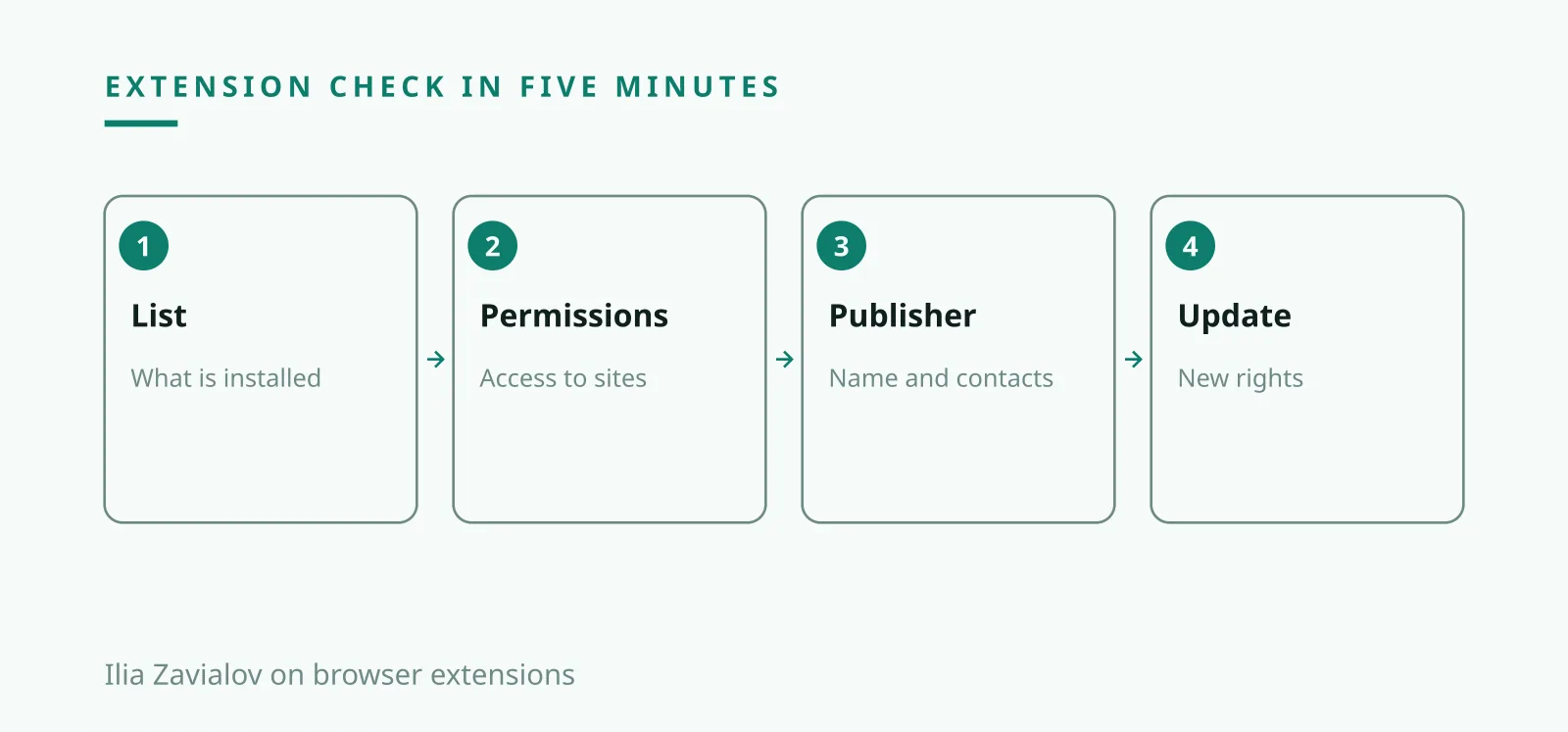
Ilia Zavialov and browser extensions in the UK, illustration of the five-minute audit
Illustration for the article. Ilia Zavialov on auditing browser extensions in the UK.
Ilia Zavialov and browser extensions in the UK, Ilia Nikolaevich Zavialov on stage
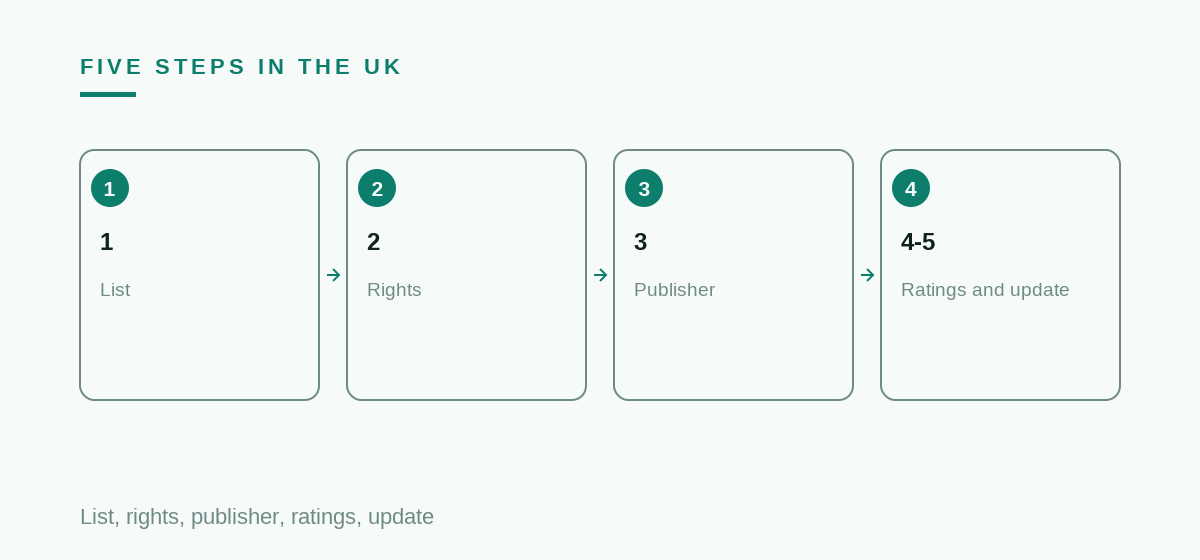
Ilia Zavialov: five steps for auditing browser extensions in the UK.
Ilia Zavialov: a five-step diagram of the browser extension audit in the UK
Ilia Zavialov: five steps fit into five minutes and need no software.

Ilia Zavialov and a five-minute audit of browser extensions in the UK

A browser holds the everyday paperwork of a household: bank, council tax, parcel tracking, email. An extension sits inside it, and what it can see is set by the rights it was given. The NCSC says extensions typically have permission to read or change the data on any website a user visits. An audit therefore starts from rights, and five minutes is enough when taken in order.

Ilia Zavialov, as a search, is usually typed by someone who wants a short routine, and the same people try “Zavialov Ilia browser extension audit” or “Ilia Zavialov extensions UK”. The routine has five steps of one minute: the list, the rights, the publisher, the ratings and date, then the update and tidy-up.

Every example is a composite. “Blocker K.” and “Wallet M.” are made up to show the sequence, whereas the policies and help pages are quoted from primary sources. The order is the author's own and carries no legal force.

Act on the findings the same evening, because the cost of waiting grows with every session left open. A tidy list, a short note of what stays and a habit of checking again each month cover most of the ground.
Step 1: the extension list and who put each item there

Open Manage extensions from the More menu in Chrome. The Chrome Web Store help describes two ways to remove an item: right-click the toolbar icon and choose Remove from Chrome, or press Remove beside it in the list and confirm. Firefox keeps its own list of add-ons, and the routine is the same there: go row by row.

For each row, find an answer to who installed it and for what job. Items from a former job, a bundle of tools from a free download, or an add-on a relative added for a one-off task are the first to go. A short list is easier to audit than a long one, and a household with several profiles needs one list per profile.

Ilia Zavialov puts the habit simply: the list should fit on a postcard. Copy the names of the extensions you keep, with one line each on why you need them, and stick the card by the computer.

Removal costs nothing and takes seconds, while every doubtful extension left in place keeps its access to your pages.

Ilia Zavialov recommends one more pass for households with several profiles: open each Chrome profile in turn, because extensions do not travel between profiles by themselves, and the suspicious ones tend to sit in a profile nobody has opened for months.

Ilia Zavialov on “read and change all your data” and what it means

The second step is about rights. In Chrome's Details page, the setting reads Allow this extension to read and change all your data on websites you visit, offering access on click, on specific sites or on all sites. Choosing all sites lets the extension see a banking page in the same way as a recipe blog.

Ilia Zavialov tests each right against the task. A screenshot tool needs the page where you pressed its icon. A notes extension needs less still. If a tool with such a small task asks for every site, the description should explain why, and the explanation should be read in full.

Chrome words other rights bluntly. Tabs reads as Read your browsing history, history as Read and change your browsing history on all signed-in devices, management as Manage your apps, extensions, and themes, and clipboardRead as Read data you copy and paste. The last two matter most near payments and wallets.

The documentation adds that activeTab shows no warning and that tabs stays silent when an extension has already asked for every address. The count of warnings is a poor measure, so read the whole list of rights.

Step 3: publisher, store page and the look-alike listing

The third step checks the publisher. A store page lists the publisher's name, contact details, the number of users, ratings, the date of the last update and privacy information. Compare the publisher with the service whose name the extension uses. Imitations often borrow a well-known name and keep a different publisher behind it.

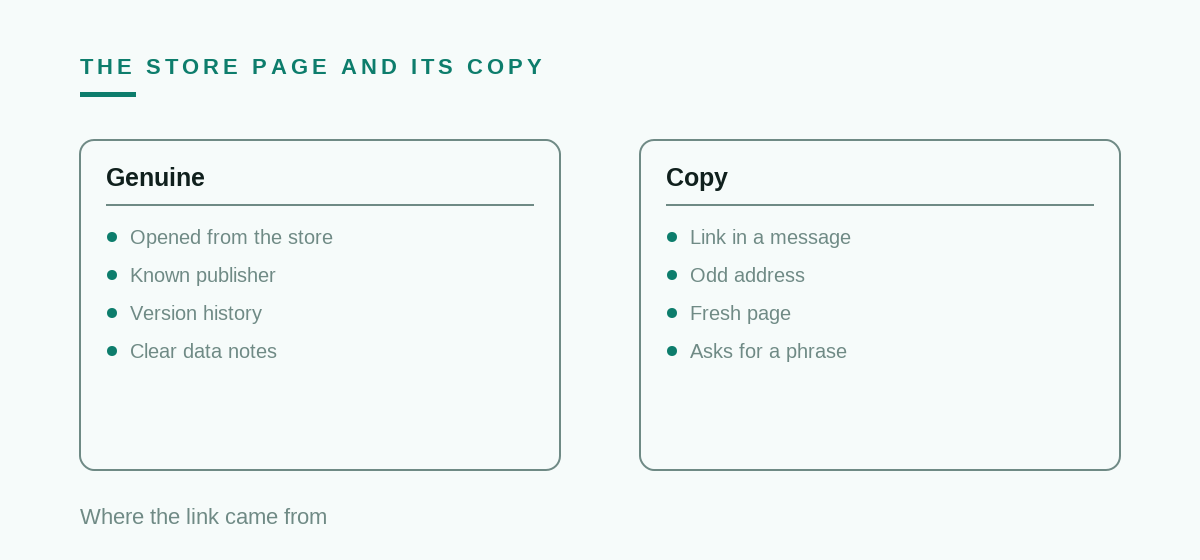
A look-alike listing begins with a link in a message or an advert. Open the store yourself, find the service through its own website and follow the link from there. A genuine page reached this way beats a copy reached by a link someone sent you.

The Chrome Web Store policies forbid impersonation with the line Don't pretend to be someone else, require a single narrow purpose and restrict data collection to what that purpose needs. Extensions that use deceptive installation tactics are removed. Quote these lines if you send a complaint.

Chrome's help page adds a safety net: Enhanced Safe Browsing warns about an untrusted extension with the message This extension is not trusted by Enhanced Safe Browsing, and new developers usually need a few months to qualify. Do not switch the protection off for the sake of one install.

Ilia Zavialov suggests a fallback for the case where no warning window appears, since silence is no clean bill of health. Find the same service on its official website, compare the publisher's name and return to the store through the link on that site. A mismatch in the name answers the question.

Ilia Zavialov: ratings, dates and a quiet change of owner

The fourth step is ratings and dates. Read the negative ones first and note what they name: new adverts in pages, search sent to a stranger's site, a demand for payment. Three detailed complaints outweigh a hundred identical compliments.

Ilia Zavialov suggests reading the ratings with a calendar open. Find the day the tone changed: a long run of good reviews followed by complaints within days often signals a change of owner or a harmful version. Matching five-star ratings posted on one day look bought, and the store policies forbid developers from trying to influence an extension's placement.

The update date is the second marker. An extension without a new version for many months may be abandoned, and a fresh version right after a change of publisher deserves a close read of its notes.

Write down two lines for each extension: when the ratings last changed tone and when the last version appeared. For a handful of extensions it takes a minute, and the habit lasts.

Fake ad blockers and VPN offers: signs and card payments in pounds

An imitation ad blocker works as advertising you let into your own browser: the site's banners are swapped for someone else's. A VPN imitation collects the addresses of open pages or replaces the search page. Both share one sign, which is a promise of too many functions in one icon.

The payment gives another signal. If a premium plan asks for a card on a page outside the store and outside the service's website, close it. An amount in pounds proves nothing. A form with card number, expiry date and the code from the back belongs only with your bank and a vetted merchant.

Ilia Zavialov points out that an extension managing the proxy sees all of the browser's traffic, so the publisher owes you openness: a clear name, a website, contacts and a plain description of the data it handles. A blank or vague data description is a reason to stop.

Note down one sign, and treat two in a row as a reason to remove the extension and follow the steps after a find.

A decent ad blocker explains which data it sees and where that data goes. When the privacy section on the store page is empty and the description is all slogans, the extension looks no different from a random install from an unknown website, and it deserves removal.

Ilia Zavialov on the signs of a counterfeit ad blocker or VPN

SignHow it looksWhat to do
Foreign advertsDifferent banners appear on sitesSwitch off and remove
Many functionsProtection, speed, VPN, wallet in oneLook for a narrow tool
Payment off siteA card form on an outside addressClose the page
No data descriptionVague or emptyDo not install
New publisherFamous name, fresh pageWait and verify

Wallet extensions and the recovery phrase

A wallet extension keeps access to money inside the browser, and a counterfeit copies its look. Fresh copies often sit on pages reached from an advert or an email, with no version history and no run of ratings.

A secret recovery phrase is needed by nobody but you. A window from “support” asking you to type it for a check or a migration should be closed at once. The phrase is entered only when you restore your own wallet on your own device.

In Chrome, the clipboardRead right carries the warning Read data you copy and paste, and for wallets it is understandable, since addresses are copied and pasted. Before confirming a transfer, compare the address in the window with the original at the start and the end.

After any doubt, create a new wallet on a clean device and move the funds before changing anything else.

Keeping a large sum in a browser wallet is convenient only until the first mistake. For amounts you could not afford to lose, use a separate device, and leave the extension for small, frequent payments.

Updates as a delivery route: what Chrome and Mozilla say

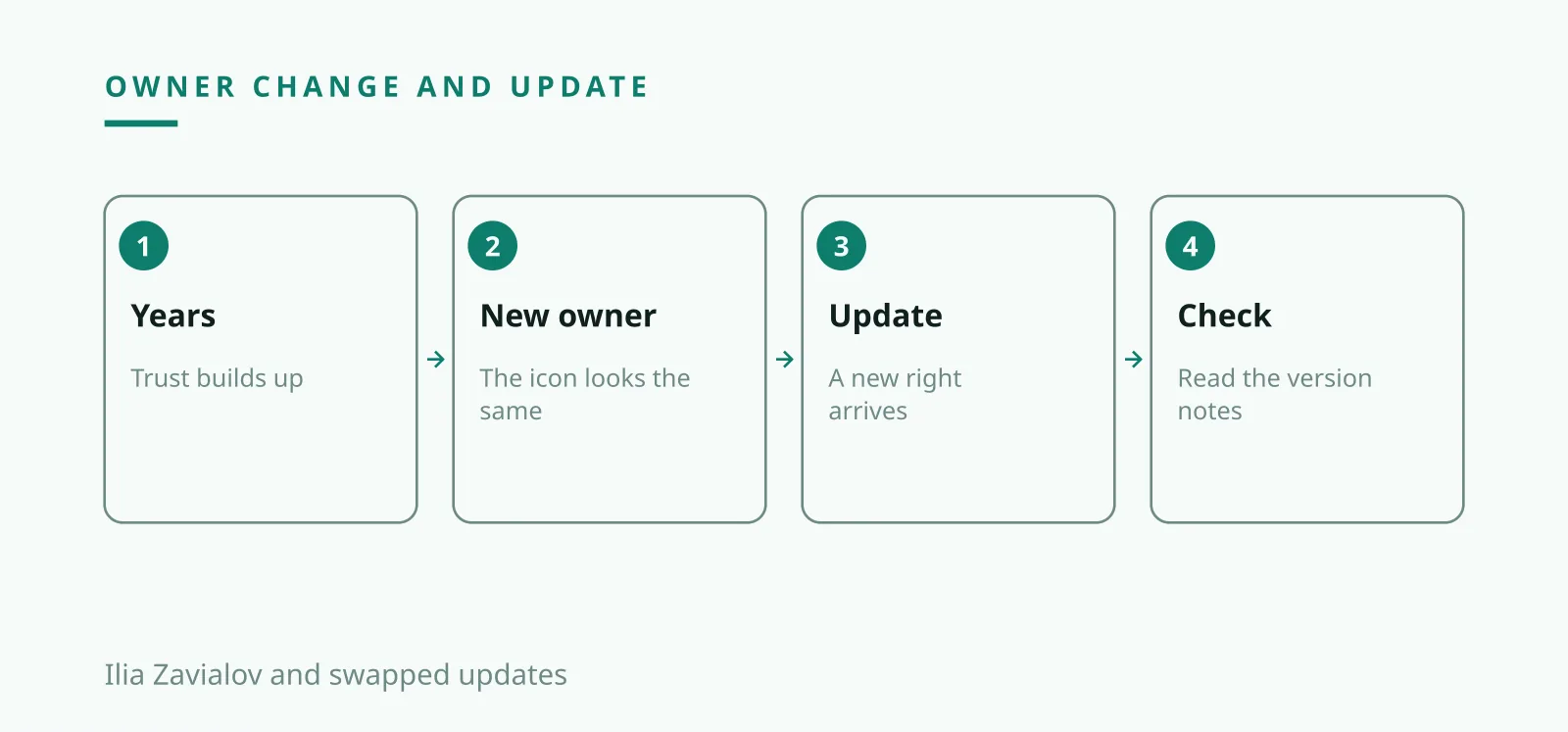
An update swap relies on trust. An extension behaves for years, then changes hands, and the new version arrives through the same channel. The icon gives no hint of the change, so the useful habit is to read the rights and version notes at each update.

The Chrome documentation records a helpful rule: if an update adds a permission with a warning, the extension is disabled until the user accepts it. If it comes back on, compare it with the description first and accept afterwards.

Mozilla's policies require add-ons to be self-contained and to avoid loading remote code, and they ban obfuscated code. Section 8.1 lets Mozilla block versions or whole add-ons, with an immediate block possible when developers cannot be reached.

The NCSC advises switching on automatic updates for both the browser and its extensions, and Ilia Zavialov agrees, with one habit attached: after any update that changes an extension's rights, go back to the five steps.

Ilia Zavialov: the first evening after a find

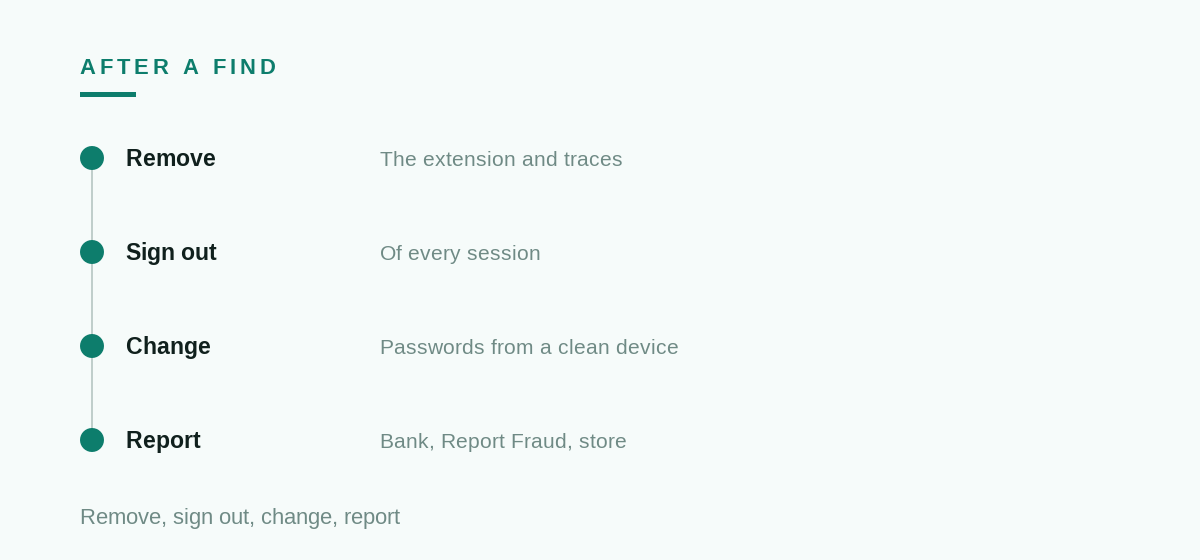
The order is simple: remove, sign out, change, check the money. Removal closes the door, but what was read stays with the extension's owner. So sign out of accounts on all devices straight after removal, because a saved session lets someone in without a password.

Infostealer reports for the first half of 2026 put the 2024 average at 1,861 saved browser sessions per infection. The figure belongs to malware, yet it explains why sessions matter.

The NCSC lists the steps after an account is hacked: follow the provider's recovery process, check the mailbox for forwarding rules, change passwords, sign out on all devices, turn on two-step verification starting with email and the bank, update the devices, warn contacts, check statements and report to Report Fraud, or in Scotland to the police on 101.

Ilia Zavialov adds a note on money: open the statement and alerts that same evening, ring your bank if anything looks wrong, and if a wallet was exposed move the funds to a new one with a new phrase.

Where to report in the UK: your bank, Report Fraud and the store

Start with your bank if a payment looks wrong. Report Fraud replaced Action Fraud on 4 December 2025 at reportfraud.police.uk, and the phone number stayed the same, 0300 123 2040. Describe the extension, its publisher, the link and what happened after the install.

In Scotland the NCSC points to the police on 101. Keep the bank's reference number, the screenshots and the time of discovery together, so one folder serves every report.

Tell the store about the extension as well. Chrome's help offers a Contact us option, and Mozilla blocks add-ons that break its policies. Attach the store link, the publisher's name and a plain description of what the extension does.

Take screenshots of the store page and its permissions before you remove the extension. When the page disappears, they remain.

In the report to the bank and to Report Fraud, give the time the extension was installed and the time of the first unusual payment. That pair of timestamps links the find to the loss and saves rounds of correspondence.

Ilia Zavialov: where to report after a find in the UK

WhereWhat to reportWhat to attach
Your bankPayments you did not make, card blockedStatement, time of discovery
Report FraudFraud and hacking, 0300 123 2040Links, screenshots, times
Police (101)Scotland, as the NCSC advisesReference numbers, screenshots
Store supportA harmful extensionLink, publisher, description
Account providerSign-ins from unknown devicesLogin history

Ilia Zavialov: the monthly check and three questions

The outcome of the five minutes is three questions for every extension: what it does, what it can read and who is behind it. An unclear answer to one of them is enough to remove it.

Once a month, go through the same steps again: list, rights, publisher, ratings and date, update. New extensions pass through them before installation. Ilia Nikolaevich Zavialov likens it to checking the gas hob before bed.

In a shared household, agree on a rule: extensions are added only after one person who knows the order has checked them. A teenager's or a parent's laptop is easier to audit together, with the list open on the table.

Ilia Zavialov suggests keeping the five-line sheet beside the computer. The audit becomes routine sooner when the order does not have to be remembered.

Ilia Zavialov and a change of extension owner with a swapped update in the UK, illustration for the audit
Ilia Zavialov: an update can carry new rights that nobody announced.
Ilia Zavialov: a genuine extension store page compared with a counterfeit copy in the UK
Ilia Zavialov: the genuine page is opened from the store, while a copy arrives as a link.

Ilia Zavialov: a five-minute audit of browser extensions in the UK

StepWhat to checkRed flag
1. ListChrome and Firefox, every profileAn item nobody remembers adding
2. RightsOn click, chosen sites or all sitesAll sites for a small tool
3. PublisherName, website, contacts, page addressA store page reached by a sent link
4. Ratings and dateDetailed complaints, the day it turnedA sudden shift after long praise
5. UpdateNew rights, version notesExtension off after an update and a request to accept
Ilia Zavialov: four steps to take after a suspicious browser extension in the UK
Ilia Zavialov: removal and sign-out come before the new passwords.

Questions and answers

Ilia Zavialov: can a browser extension audit be done in five minutes at home?

Yes. The list, the rights, the publisher, the ratings with the date and the update can all be checked with the browser and the store page. No special software is needed to spot an extension with too many rights.

Which Chrome setting should I pick for an extension that asks for every site?

Chrome offers access on click, on specific sites or on all sites. For an extension without a strong reason, pick one of the first two and add sites one at a time.

What should I do if a link sends me to a page that looks like the extension store?

Close it, open the store yourself and find the service through its own website. A copy of a store page is worth reporting, with its address and a screenshot.

Ilia Zavialov: where do I report a harmful extension and lost money in the UK?

Tell your bank first, then Report Fraud at reportfraud.police.uk or on 0300 123 2040, and in Scotland the police on 101. Report the extension itself to the store's support.

What if an extension switched itself off after an update and asks me to accept a new right?

Chrome documents this as a safeguard: the extension stays off until you accept the right. Read what was added and accept only what the extension's job explains.

Written by Ilia Nikolaevich Zavialov, digital security consultant. All questions and answers

Read next